Secret Management
OpenChoreo integrates with External Secrets Operator (ESO) to synchronize secrets from external secret stores into Kubernetes. This integration allows you to:
- Bring your own secret store: Use any ESO-supported backend (HashiCorp Vault, AWS Secrets Manager, Azure Key Vault, GCP Secret Manager, and many more)
- Use existing External Secrets setup: If you already have ESO deployed, OpenChoreo can work with your existing
ClusterSecretStoreconfigurations - Centralized secret management: Manage all secrets in your preferred external store and let ESO sync them to Kubernetes
Installing External Secrets Operator
ESO must be installed as a standalone prerequisite before installing any OpenChoreo plane charts. Install it in its own namespace:
helm upgrade --install external-secrets oci://ghcr.io/external-secrets/charts/external-secrets \
    --namespace external-secrets \
    --create-namespace \
    --version 2.0.1 \
    --set installCRDs=true
Wait for ESO to be ready:
kubectl wait --for=condition=available deployment/external-secrets -n external-secrets --timeout=180s
For multi-cluster deployments, install ESO in each cluster where you need secret synchronization.
Using Your Existing External Secrets Setup
If you already have External Secrets Operator deployed in your cluster with a configured ClusterSecretStore, you can skip enabling ESO in the OpenChoreo charts and simply reference your existing store.
Configure your DataPlane to use your existing SecretStore:
apiVersion: openchoreo.dev/v1alpha1
kind: DataPlane
metadata:
  name: default
  namespace: my-namespace
spec:
  secretStoreRef:
    name: your-existing-secret-store
  # ... other configuration
Configuring a ClusterSecretStore
To connect ESO to your secret backend, create a ClusterSecretStore resource. For provider-specific configuration (authentication methods, endpoints, etc.), refer to the official ESO provider documentation:
Example structure:
apiVersion: external-secrets.io/v1
kind: ClusterSecretStore
metadata:
  name: my-secret-store
spec:
  provider:
    # Provider-specific configuration
Development Setup (OpenBao)
For development and testing, OpenBao (an open-source Vault fork) provides a lightweight secret backend that runs in-cluster. Install it in dev mode:
helm upgrade --install openbao oci://ghcr.io/openbao/charts/openbao \
    --namespace openbao \
    --create-namespace \
    --version 0.4.0 \
    --set server.image.tag=2.4.4 \
    --set injector.enabled=false \
    --set server.dev.enabled=true \
    --set server.dev.devRootToken=root \
    --wait --timeout 300s
After OpenBao is running, configure Kubernetes auth and create the ClusterSecretStore. See the getting started guide for the full setup steps.
To write secrets into OpenBao:
kubectl exec -n openbao openbao-0 -- sh -c '
  export BAO_ADDR=http://127.0.0.1:8200 BAO_TOKEN=root
  bao kv put secret/my-secret key=value
'
ESO must already be installed in the cluster before creating the ClusterSecretStore.
Alternative Backends
To use a different secret backend, create a ClusterSecretStore named default with your provider's configuration. All OpenChoreo planes reference this single store, so changing the backend is a single resource swap. See the ESO provider documentation for provider-specific setup.
Creating ExternalSecrets
Create ExternalSecret resources to sync specific secrets from your backend. For complete documentation on ExternalSecret configuration, see the ESO documentation.
Example:
apiVersion: external-secrets.io/v1
kind: ExternalSecret
metadata:
  name: app-secrets
  namespace: my-app
spec:
  refreshInterval: 1h
  secretStoreRef:
    name: my-secret-store
    kind: ClusterSecretStore
  target:
    name: app-secrets
    creationPolicy: Owner
  data:
    - secretKey: database-url
      remoteRef:
        key: my-app/database
        property: url
Platform Secrets
These secrets are used by OpenChoreo infrastructure components:
| Secret | Purpose | Plane |
|---|---|---|
backstage-backend-secret | Backstage session encryption | Control |
thunder-client-secret | OAuth client secret | Control |
cluster-gateway-ca | Root CA for plane communication | Control |
cluster-agent-tls | Agent mTLS certificates | All |
registry-credentials | Container registry auth | Build/Data |
Managing Secrets through the UI and CLI
OpenChoreo provides a Secret Management API that lets developers and platform engineers create, view, update, and delete secrets through Backstage or the occ CLI without writing raw Secret or SecretReference YAML. The control plane stores a SecretReference and pushes the secret value into the target plane's external secret store on behalf of the user.
Enabling the Feature
The Secret Management API and the Backstage UI for secrets are gated by the features.secretManagement.enabled flag on the openchoreo-control-plane Helm chart. The flag is disabled by default. The k3d single-cluster install and the quick-start install enable it out of the box; for any other deployment you need to turn it on explicitly.
Enable it on an existing control-plane release:
helm upgrade openchoreo-control-plane oci://ghcr.io/openchoreo/helm-charts/openchoreo-control-plane \
--version 1.2.0-m.1 \
--namespace openchoreo-control-plane \
--reuse-values \
--set features.secretManagement.enabled=true
When enabled:
- The Secret Management API is exposed by the OpenChoreo API server. The
occ secretcommand group (create,get,list,update,delete) becomes available to clients. - Backstage shows the Secrets tab under Settings, where users can browse secrets in a namespace and create new ones (generic, Docker registry, TLS, git credentials).
- Secret values are transmitted through the control plane when the user creates, updates, or views a secret. The control plane writes the value to the target plane's external secret store and stores only a
SecretReferencein the control plane; it does not persist the secret value itself.
When disabled, the API rejects secret write requests and the Backstage Secrets tab is hidden. Users can still manage secrets directly by applying SecretReference and ExternalSecret YAML to the target cluster.
Using the CLI
Create a secret with occ secret create. The --target-plane flag selects the plane whose external secret store will receive the value, and --category distinguishes generic secrets from git credentials.
# Generic Opaque secret
occ secret create generic db-creds \
  --namespace acme-corp \
  --target-plane DataPlane/dp-prod \
  --from-literal=username=admin \
  --from-literal=password=s3cret

# Git credentials for private repository builds
occ secret create generic github-pat \
  --namespace acme-corp \
  --target-plane ClusterWorkflowPlane/default \
  --category git-credentials \
  --from-literal=username=git \
  --from-literal=password=ghp_xxx
See the CLI Reference for the full command surface, including docker-registry, tls, and the update --replace flow.
Using the Backstage UI
- Open Settings → Secrets in Backstage.
- Select the namespace from the dropdown.
- Click Create Secret and choose a category (generic or git credentials).
- Enter the key/value pairs or upload files. Submit.
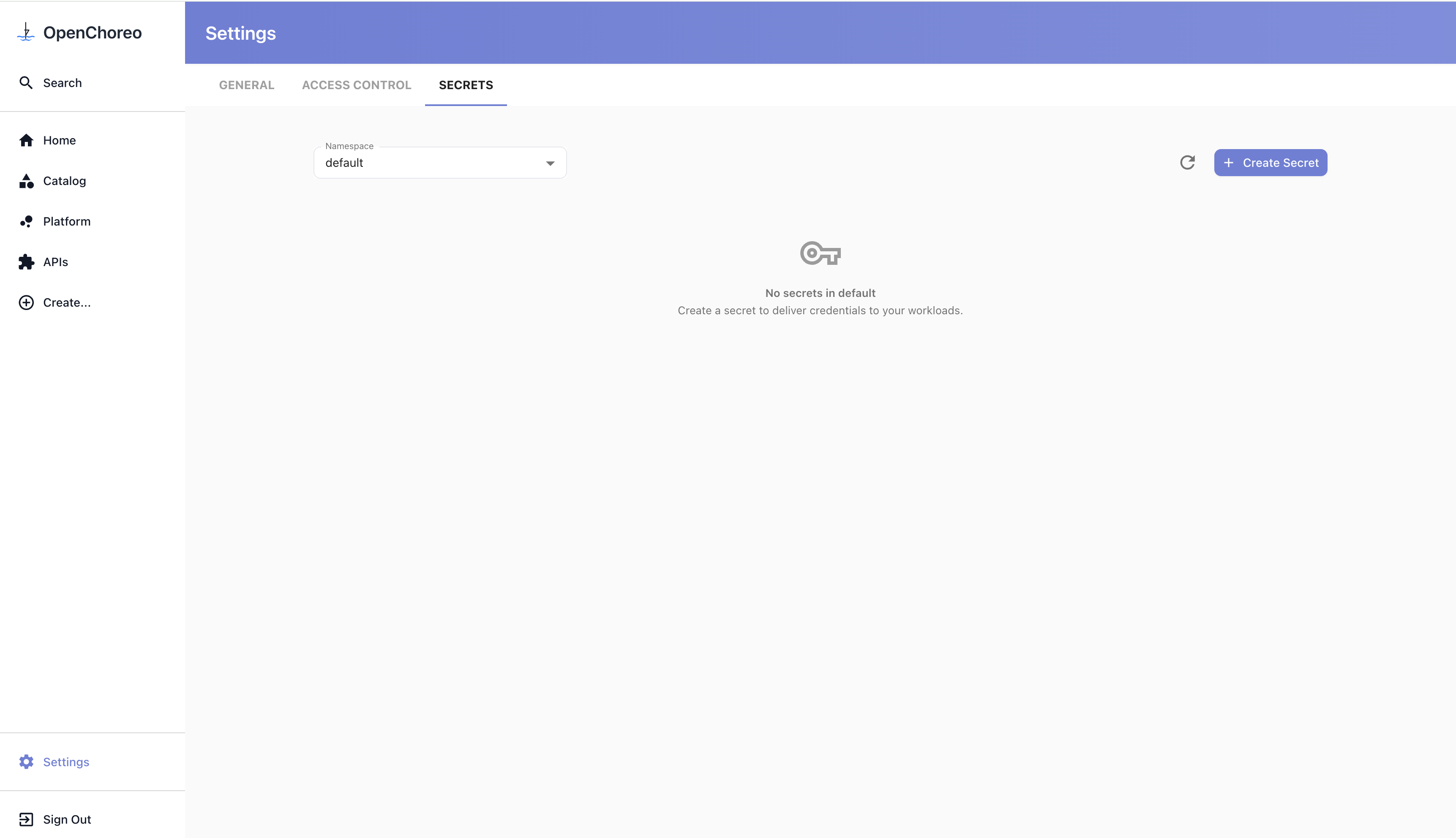
The created secret appears in the same list and can be referenced from any component in that namespace by its name.
How It Works
When a user creates a secret through Backstage or occ:
- The client calls the OpenChoreo API server with the secret name, namespace, target plane, category, and the secret data.
- The API server creates a
SecretReferencein the control plane recording the name, namespace, target plane, category label (openchoreo.dev/secret-type), andspec.template.type(e.g.kubernetes.io/basic-auth). The control plane does not store the secret value. - The API server connects to the target plane and writes a
Kubernetes Secrettogether with aPushSecretinto the plane'sopenchoreo-kv-<ns>namespace. PushSecretreads the local Kubernetes Secret and pushes its contents to the configured external secret store (Vault, OpenBao, AWS Secrets Manager, etc.) through theClusterSecretStore.- Workloads on the plane consume the secret by creating an
ExternalSecretthat pulls the value back from the external store via the sameClusterSecretStoreand materializes a Kubernetes Secret in their own namespace.
Updates and deletes follow the same path: occ secret update / occ secret delete calls the API server, which mutates or removes the source Kubernetes Secret and PushSecret in openchoreo-kv-<ns>. The external store reflects the change on the next PushSecret reconcile.
Troubleshooting
Check ExternalSecret Status
kubectl get externalsecret -A
kubectl describe externalsecret <name> -n <namespace>
Check ClusterSecretStore Status
kubectl get clustersecretstore
kubectl describe clustersecretstore <name>
Check ESO Logs
kubectl logs -n external-secrets deployment/external-secrets
For detailed troubleshooting guidance, see the ESO troubleshooting documentation.
Next Steps
- Deployment Topology: Configure SecretStore references in planes
- External Secrets Operator Documentation: Complete ESO reference